
November 2018
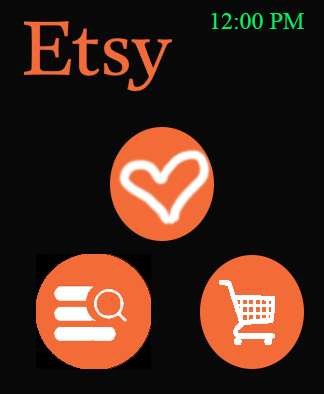
Etsy App Home Page 
Favorites Home Page
App Info
To use the Etsy Watch app, the user will be required to download the Etsy mobile app first and enter their account information. This will allow the mobile app to push/ sync account information (user name, profile, favorites, and shopping chart items) to the Apple Watch. Eliminating the need for the user to sign-in on the watch and avoiding the occlusion issue all together. Further, this will aid in memory as it will not require the user to remember their account log-in information. Considering safety, the user may choose to set up the watch app with a quick log-in feature using a number keypad, this will mimic the locking/unlocking feature on the Apple IPhone.
The menu selection is based on the mobile menu but it is further reduced to the three main navigation features.
- Heart = Favorites
- Hourglass with list = Browsing Categories
- Cart = Shopping Cart/ tap to buy
Compared to the mobile app the watch menu excludes Home and You (profile). Home is now the main three navigational selection page, and You is removed as the user will need to use their phone in order to revise or edit any profile information. Using this as an app constraint avoids the need for a watch keyboard within the app.
Limiting the number of navigation options on the main home feature increases the target size thus requiring less target accuracy will addressing occlusion issues.
To reduce occlusion on the main navigation page, the main icons are stacked in a pyramid allowing the user to see what they are not selection. This a visual confirmation that they are selecting where they want to navigate.
To select a navigation feature the user will tap twice on their selection. The watch will provide a haptic feedback when a navigation feature has been selected and will move forward.
Favorites Category
When the user selects Favorites, a photo gallery in a two column grid displaying their account favorites will display images only. In the upper right corner where the Digital Crown is located, the user will be able to scroll through the images. The Digital Crown will provide haptic feedback as the user scrolls through and a mini scroll bar next to the Digital Crown will serve as a utility signifier indicating page location. Using the Digital Crown feature the user is able to avoid occlusion when browsing the images. However if the user chooses to scroll quickly, the user may use a flicking motion anywhere on the watch face.
For additional image information the user will need to press and hold the image.
When the user chooses to go back, they may simply double tap the Etsy logo area.
To navigate to the main navigation page the user will need to double tap the Digital Crown, which will provide a haptic feedback and return the user to the homepage.
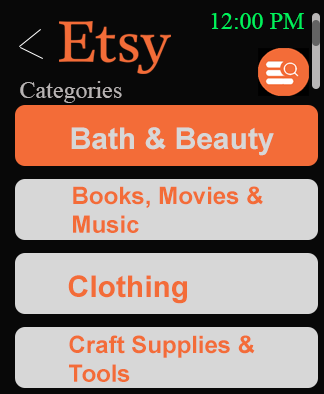

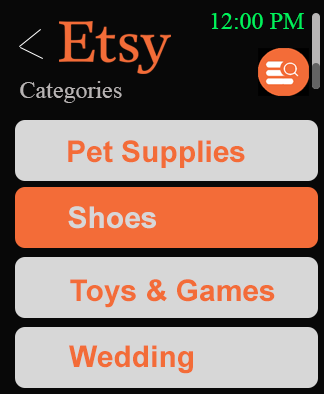
Browsing Main Categories Menu
When the user selects Categories, a list of product categories will appear in a flat list menu in a single column grid. In the upper right corner where the Digital Crown is located, the user will be able to scroll through the category options. The Digital Crown will provide haptic feedback as the user scrolls through and a mini scroll bar next to the Digital Crown will serve as a utility signifier indicating page location. Using the Digital Crown feature the user is able to avoid occlusion when browsing the category options. However if the user chooses to scroll quickly, the user may use a flicking motion anywhere on the watch face.
One tap of the category will highlight the menu name orange and a double tap will select and move the user forward.
If the user makes a category selection that they are not happy with and they would like to go back to the main category menu, they will double tap on the Etsy Logo. If the user chooses to go back to the homepage, they will either need to continue to tap on the Etsy logo until they return to the main homepage or they will need to double tap on the Digital Crown which will automatically jump them back to the main homepage.
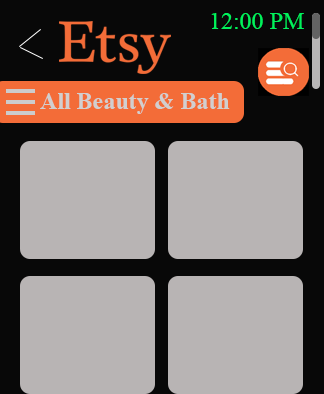

Categories and Sub Categories (Primary and Secondary Menus)
When the user navigates to a category it the default will page will show all items for that category. The items will appear in a photo gallery in a two column grid displaying images only. In the upper right corner where the Digital Crown is located, the user will be able to scroll through the images. The Digital Crown will provide haptic feedback as the user scrolls through and a mini scroll bar next to the Digital Crown will serve as a utility signifier indicating page location. Using the Digital Crown feature the user is able to avoid occlusion when browsing the images. However if the user chooses to scroll quickly, the user may use a flicking motion anywhere on the watch face.
If the user would like to refine their browsing selection they will need to hold the hamburger menu icon next to the category header which will open up another navigation flat menu page breaking out the subcategories within their chosen main category.
If the user makes a refined category selection they are not happy with and they would like to go back to the category submenu, they will double tap on the Etsy Logo. If the user chooses to go back to the homepage, they will either need to continue to tap on the Etsy logo until they return to the main homepage or they will double tap on the Digital Crown which will automatically jump them back to the main homepage.
Image References:
Press. (n.d.). Retrieved November 15, 2018, from https://www.etsy.com/press
Free Image on Pixabay – Shopping Cart, Caddy. (n.d.). Retrieved November 15, 2018, from https://pixabay.com/en/shopping-cart-caddy-shopping-trolley-304843/
Free Image on Pixabay – Database Search. (n.d.). Retrieved November 15, 2018, from https://pixabay.com/en/database-search-database-search-icon-2797375/
 Nikki Monczewski